
Everything Tubekeep does
One shape runs through everything below: your own lists are read and changed inside the YouTube tab you are already signed in to, because they are yours and it has to be you; the index lives in your browser; and the only thing that ever leaves carrying anything of yours is the AI subscription filing you have to turn on yourself.
A Watch Later you can work through
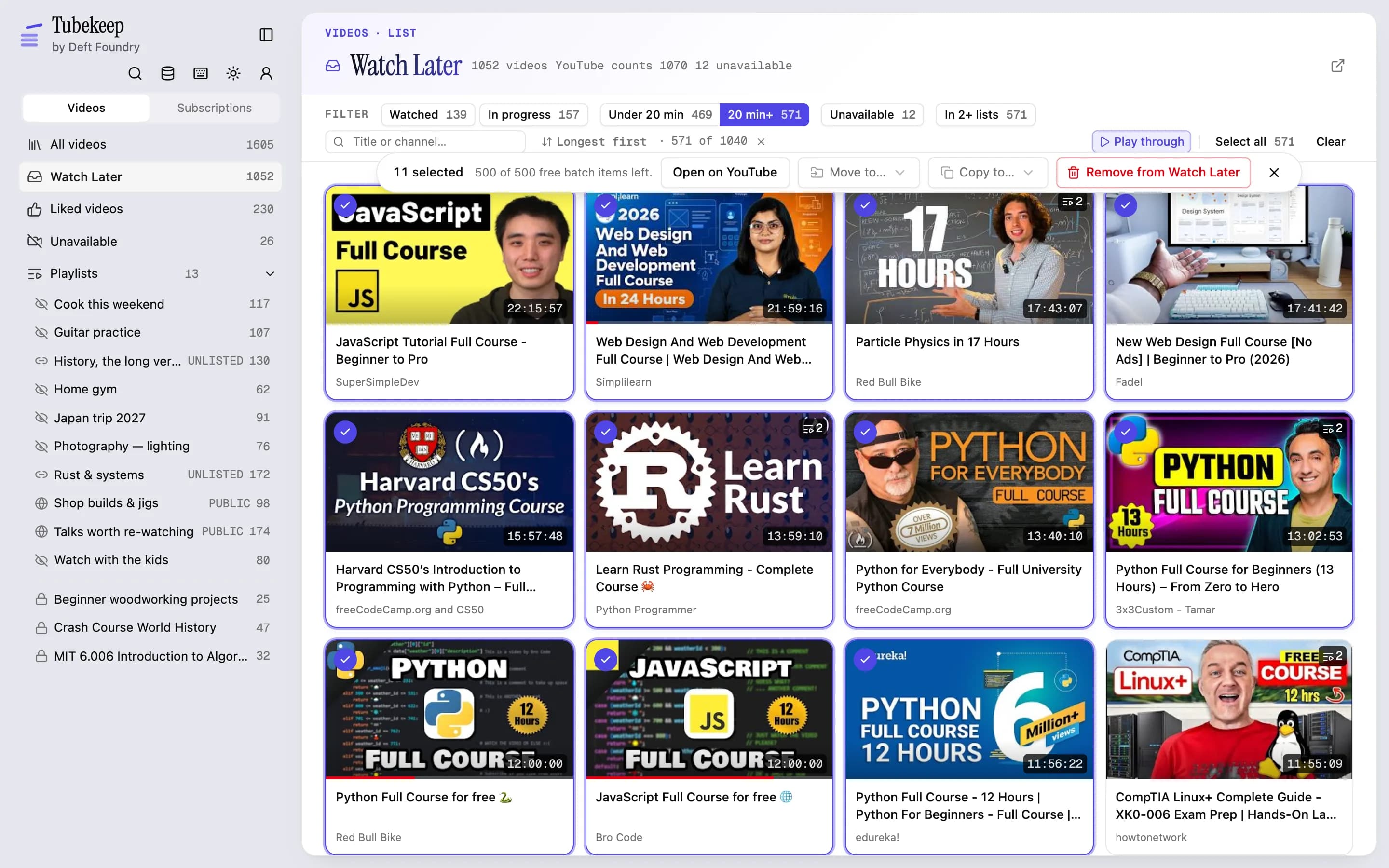
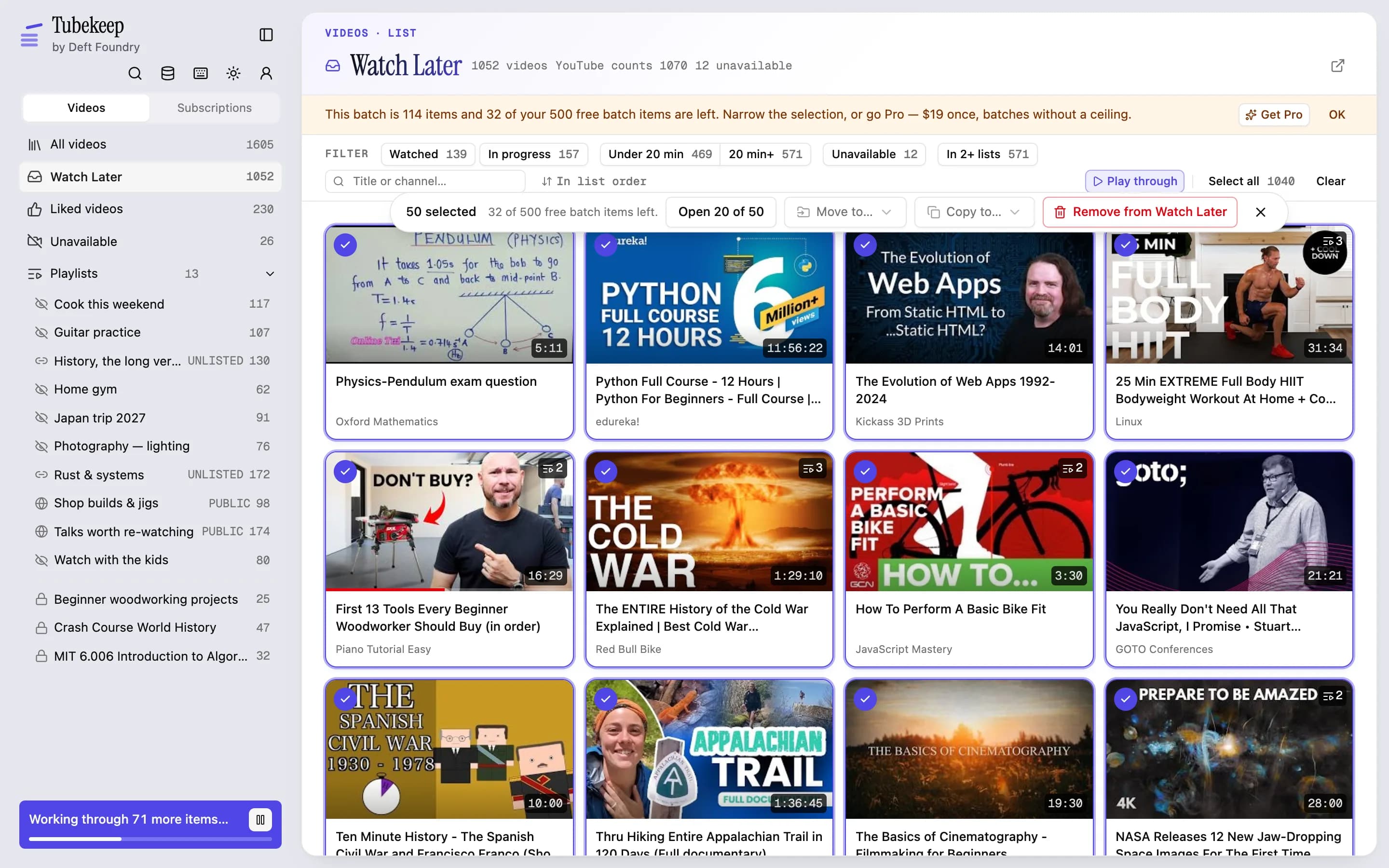
Sort Watch Later by length, by date added or by channel, then delete the videos in bulk. Most of a four-figure queue is not one problem: sorted, it becomes several — and most of them close in a single batch.
- Sort by how long a video is, by how long it has sat there, or by whose it is — instead of the order it went in, and every axis runs both ways.
- Narrow to one pile before you touch anything: watched, in progress, under 20 min, 20 min+, gone from YouTube, also in another of your lists, in none of them. Each button says how many it would leave, so you see the pile before deciding about it.
- Then select what you meant: a click, a shift-range, a lasso dragged across the grid, or everything the filter left in one press.
- Cards wear YouTube's own red watched bar, read from your account on every pass — so the first question of triage, "have I seen this?", is answered before the first click.
- Remove the selection, or move it into a playlist that means something — including one you create from inside the picker, without leaving the batch you are holding.
- Click a card and it plays in a panel over the grid rather than in another tab, picking up where you stopped watching. Deciding about twenty videos is twenty clicks instead of twenty round trips.
- Four sizes, and Escape walks back down them one at a time: drag the panel's edge, fill the pane, fill the window, fill the screen. The first two keep the button that takes the video out of the list under the video; the last two are for watching.
- Play through walks the videos the filter left, in the order they are on screen — your list, nothing recommended, no autoplay past the end — and turns that button into remove-and-continue. You come out with a shorter list, not just an evening spent.
- Or shuffled: the same pile drawn into a random order when the run starts, and drawn again from inside the run whenever you want another one — the grid behind it never moves, and neither does your list.
- Switching between the two mid-run never interrupts the video playing, and going back to the list's order means the whole list, not the half still in front of you.
- The grid keeps every column while something plays, so you can keep selecting and scrolling. The real YouTube page is one button away, and it is where a video nothing is allowed to embed opens automatically.
- The keyboard runs the whole loop on YouTube's own keys: k or space to pause, j and l to jump ten seconds, m to mute — from anywhere on the page, not only once you have clicked the video.
- x picks a card, Backspace takes it out of the list, o opens it on YouTube, ? lists the lot. The rail carries a button showing the same list, and the Data pane a switch that turns the single-letter keys off.
It reads all your lists in, and then keeps up
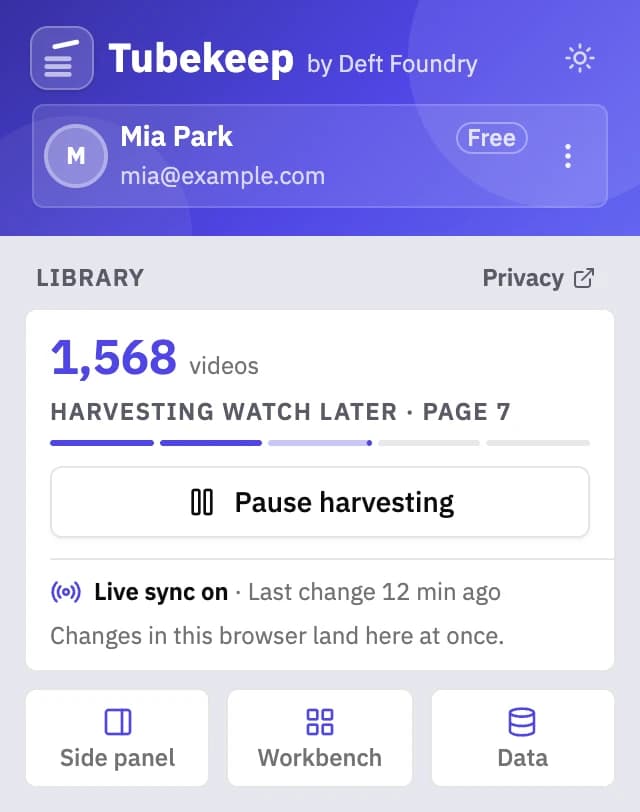
Watch Later, every playlist, your liked videos and every channel you subscribe to — walked into the browser in the background, from your own session. No Google sign-in to grant, no OAuth screen, no API key. A Watch Later that has hit YouTube's 5,000-video ceiling reads in whole, and clearing it here is what makes room again.
- It works in the page rather than through YouTube's data API, which is the only way anything can reach Watch Later at all — that list has been closed to developers for years.
- A long read survives the panel being closed, the browser restarting and the worker being shut down, and picks up from where it stopped.
- Add something to Watch Later, save a video to a playlist or unsubscribe while you are on YouTube, and the library follows within seconds — no re-read, no stale rows.
- What it stores is the index: channel names and ids, video titles, ids and durations, and where each one sits.
The copy of your library YouTube cannot delete
Find the deleted, private and blocked videos sitting in your playlists, grouped by the list each one is in, and clear them in a batch. Playlists rot quietly and YouTube hides the rot: a list of 400 plays 380, and the page says only that some are hidden.
- A pane listing every unavailable video you have, grouped by the list it sits in, saying which are deleted, which have merely gone private, and which still exist but will not play for you.
- It gets them by asking YouTube — the same «Show unavailable videos» its own playlist menu offers — so the rows arrive with titles, channels and lengths rather than as a number. Never by checking whether a thumbnail loaded, which calls every video dead the moment an image host is blocked.
- A deleted video comes back as a placeholder rather than a name, so some rows have no title left. The pane says which, instead of implying it found something it did not.
- For the ones that kept a name, search YouTube for them in one press — the most useful thing left to do about a video that has gone.
- Clear them out in a batch, per list, with the same confirmation and the same pacing as everything else.
- And the worst thing that happens to a curated list is not rot but the list going away: export the whole index — lists, memberships, folders and all — to one JSON file, and import it on another machine or after a reinstall.
![The Tubekeep Unavailable pane, 26 entries grouped by list: Watch Later’s twelve, where grey [Deleted video] and [Private video] placeholders sit beside blocked videos that kept their real title, channel and length — each badged deleted, private or unavailable — over a Re-scan lists button and a line saying 18 more are counted but not yet read back.](/_next/image?url=%2Fimages%2Fx%2Ftubekeep%2Funavailable.webp&w=3840&q=75)
Your whole library, beside YouTube
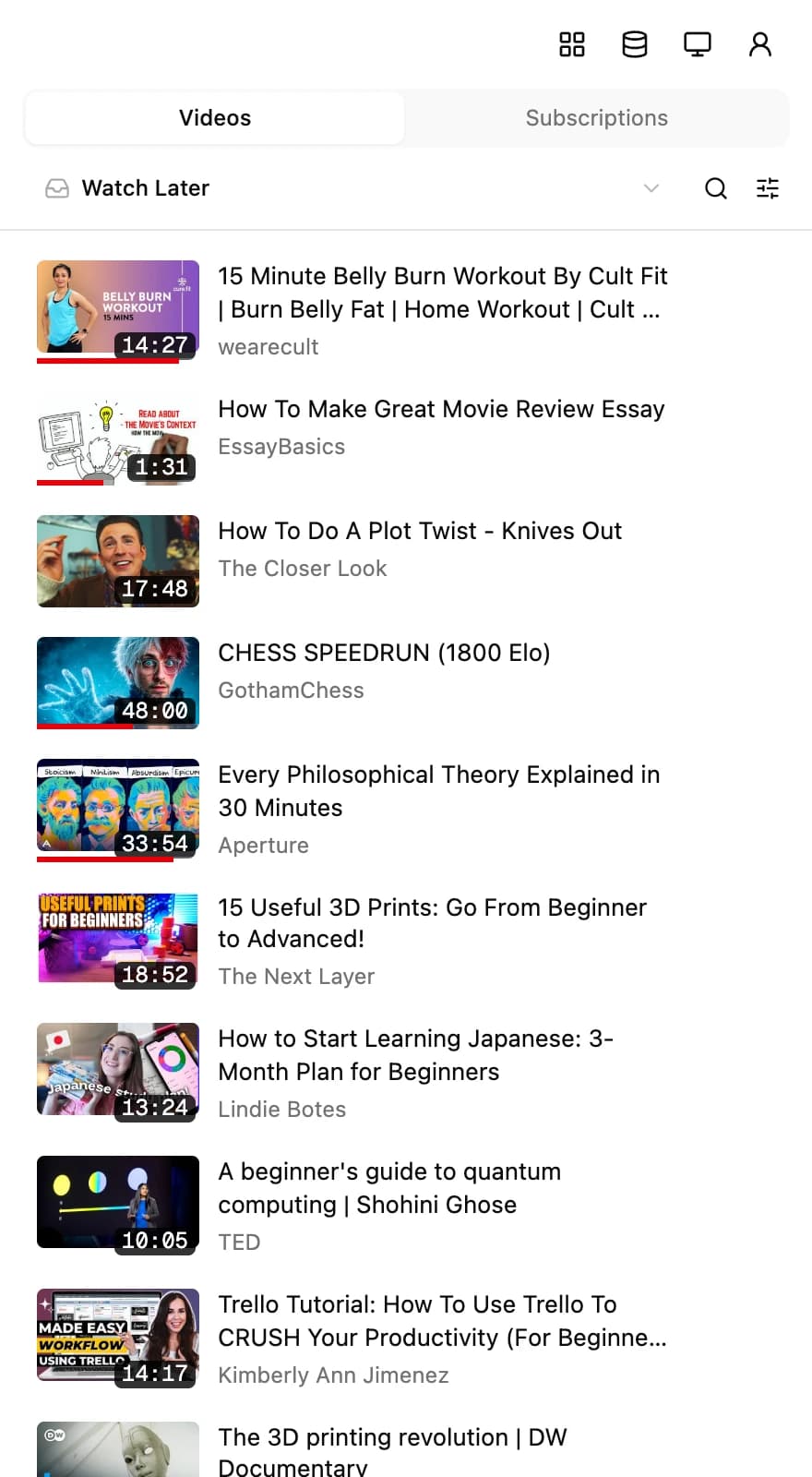
A panel that stays open next to the page you are watching, holding every list you have — so choosing the next thing does not mean going somewhere else to look for it.
- Two halves, switched at the top, because they are two different questions. One is everything you saved: step through Watch Later, any playlist or the videos you liked, in the same outline the workbench uses.
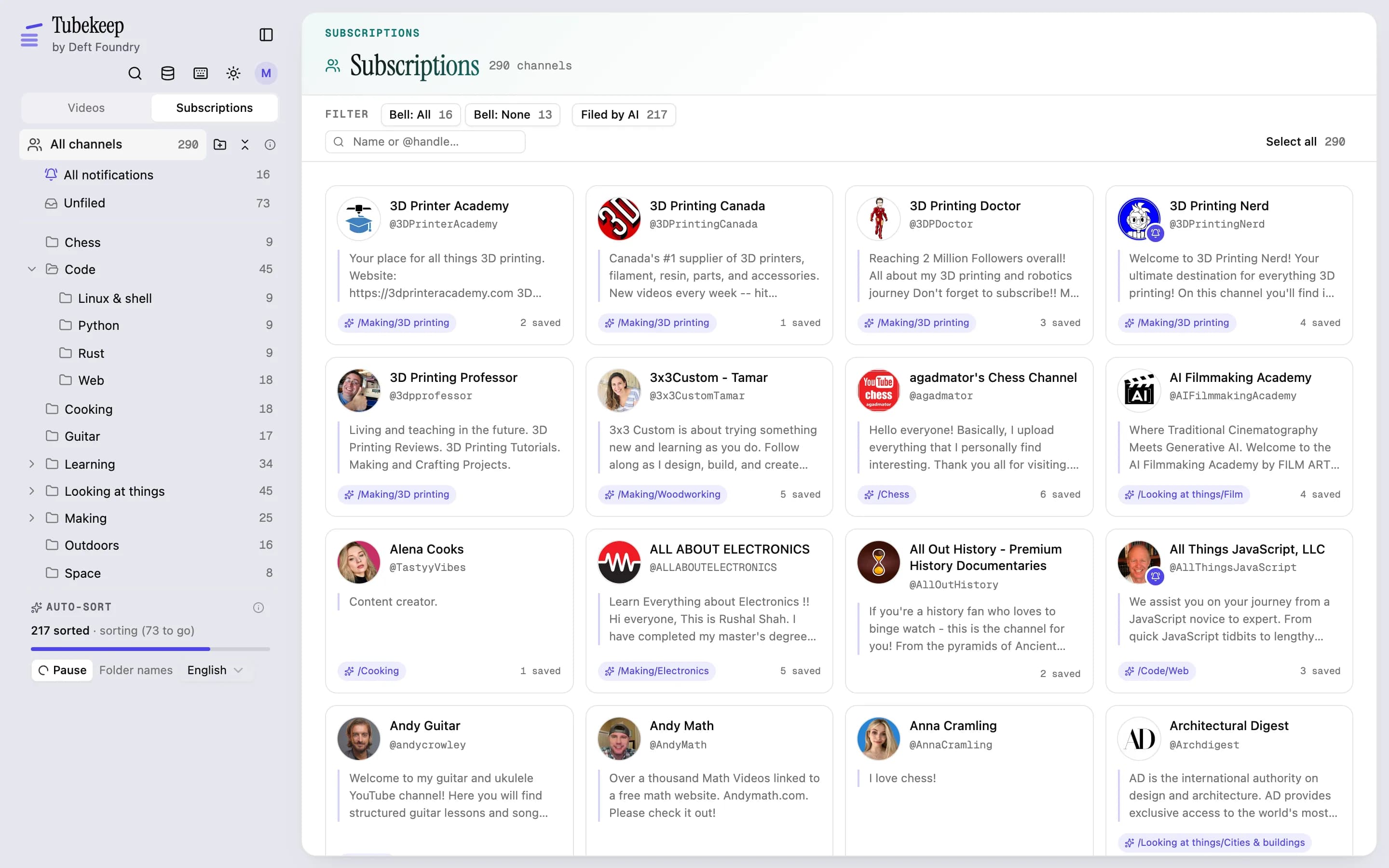
- The other is everyone you follow, drawn as your folder tree with the channels sitting in it. Unfiled channels and the ones you gave the bell to sit at the top as their own folders — a few hundred subscriptions read as a map instead of a scroll.
- And it is a working tree, not a picture of one: make a folder, rename or move one, file a channel or unsubscribe from it, without leaving the page you are watching. Unsubscribing is the only one YouTube ever sees, and it goes through the same paced, undoable queue.
- Narrow the saved half with five of the workbench's own buttons — watched, in progress, under 20 min, 20 min+, gone from YouTube — each saying how many of the list it would leave. The other half narrows by the notification bell you set on YouTube.
- One box searches the half you are standing in, answering as you type, each result naming the list it is in. When the other half has matches too, a line at the foot says how many and carries the word across.
- What you pick opens on YouTube in the tab you are already on, and the panel stays put — the row you are watching stays marked while you watch it.
Playlists, as a filing cabinet rather than a queue
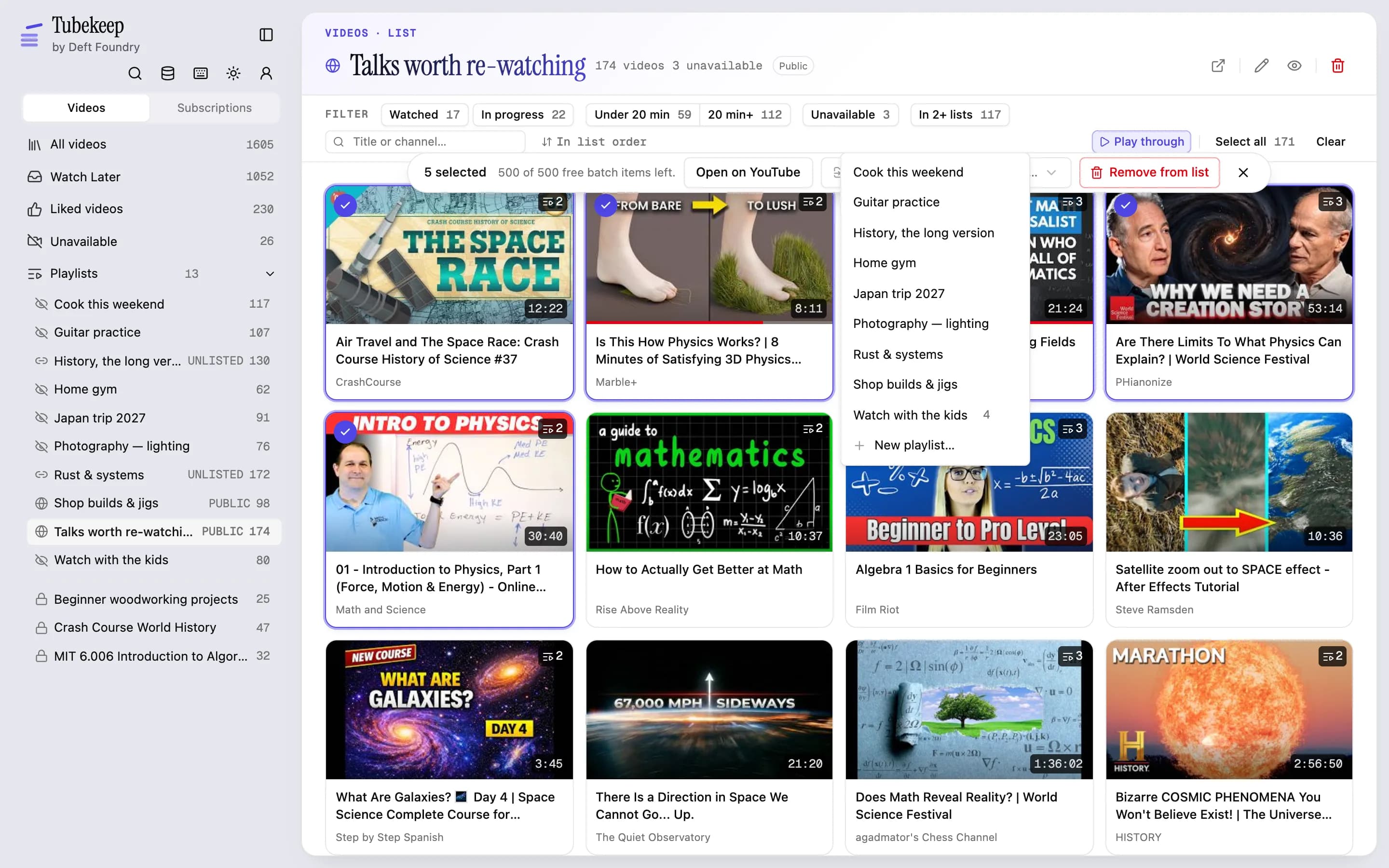
Move or copy videos between playlists in one gesture. A video can sit in four lists, and on YouTube that is four separate three-dot menus; here it is four rows, and a batch moves between two of them in a single pass.
- Move or copy any selection into another playlist — or into a new one, created without leaving the batch. A move adds before it removes, so an interruption leaves a duplicate rather than a hole.
- Your own lists come first and the ones you saved from other people come second, because that line decides what every control on the pane is allowed to do.
- Rename your own lists, set one public, unlisted or private, or delete it outright — and remove a saved list from your library without touching whoever made it.
- Liked videos gets its own pane rather than hiding among the playlists: it reads in, it is searchable, you can copy out of it, and you can un-like in bulk. The button says Un-like rather than Remove, because YouTube stops counting an un-liked video towards what it recommends you.
The one video that is in four lists
Find the duplicate videos across your playlists. YouTube renders a list at a time, so a video saved four times looks like four different videos — until you go to clear one list and cannot tell whether you are tidying up or throwing something away.
- Every video in more than one of your lists wears the count on its tile. One is the resting state and draws nothing: the mark is for the minority, and it exists to stop the removal that would have been the last copy.
- Press it and it names them, one row per list — the number a library kept on your machine can report and YouTube cannot.
- Each row has a way out: drop the video from that list, or keep only that one and drop the rest. It is the only removal here aimed at a list you are not standing in — safe because the row it sits on is that list's own name.
- A list you cannot write to — one you saved from someone else — is shown and marked rather than hidden, because it is part of the count. The confirmation says how many it will really remove and how many are staying put.
- Filter any list down to the videos that are also somewhere else, and that same filter is the bulk answer: narrow to what is already filed elsewhere, take all of it, remove — and you have emptied one list of everything it was not the last copy of.
- All of it goes through the same paced queue as any other batch: the local library changes only after YouTube confirms each write, and the whole batch undoes in one click.
Where did I put that
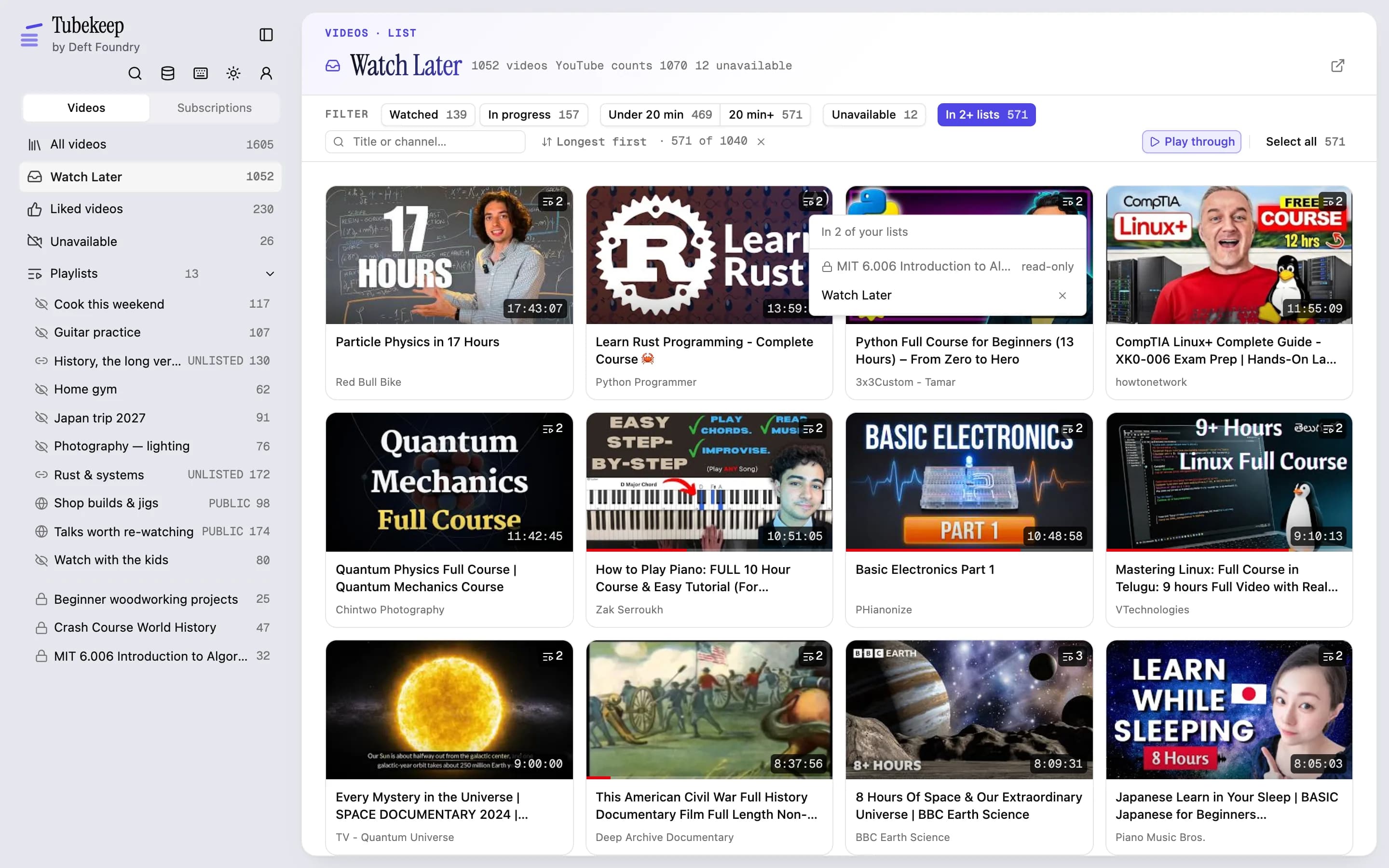
Search inside every YouTube playlist at once. A library big enough to need tidying is one where you can no longer remember which of eleven lists a thing went into — and YouTube renders one list at a time, so it will never tell you.
- One box over the whole library — ⌘K from anywhere on the workbench, or the magnifier on the rail. It opens over whatever you were doing rather than taking you away from it, and answers as you type.
- Titles and channel names are matched, and every word has to appear, so a second word narrows rather than widens.
- Your lists, folders, channels and videos come back in one column, each type under its own heading with its own count — so a query that meant a playlist and one that meant a video need not be typed differently.
- Arrow keys walk the whole thing, Enter takes the highlighted row, and the first row is highlighted from the first keystroke.
- Every video says which of your lists it is sitting in, under the title. That line is the whole point: on every other screen you already know where you are, and this is the one you got to by typing.
- Press a list or a folder and you are there, with everything that screen normally does. Press a video and it plays in the panel beside your grid.
- It tells you what it is holding. The videos it matches are the ones saved in your lists, and the heading says so — a subscribed channel is searchable by name, but its uploads were never indexed, so pressing it reads that channel's catalogue live instead.
- Every video that matched is in the column, not the first dozen — it pages as you scroll.
- And when what you found is a pile rather than a place, the list it lives in is where you act on it: the same word typed into that list's filter row narrows the grid you select from.
- It is all local and instant: the index is already in your browser, so the answer arrives as you type, with nothing asked of YouTube and nothing sent anywhere.
Channels in folders you named
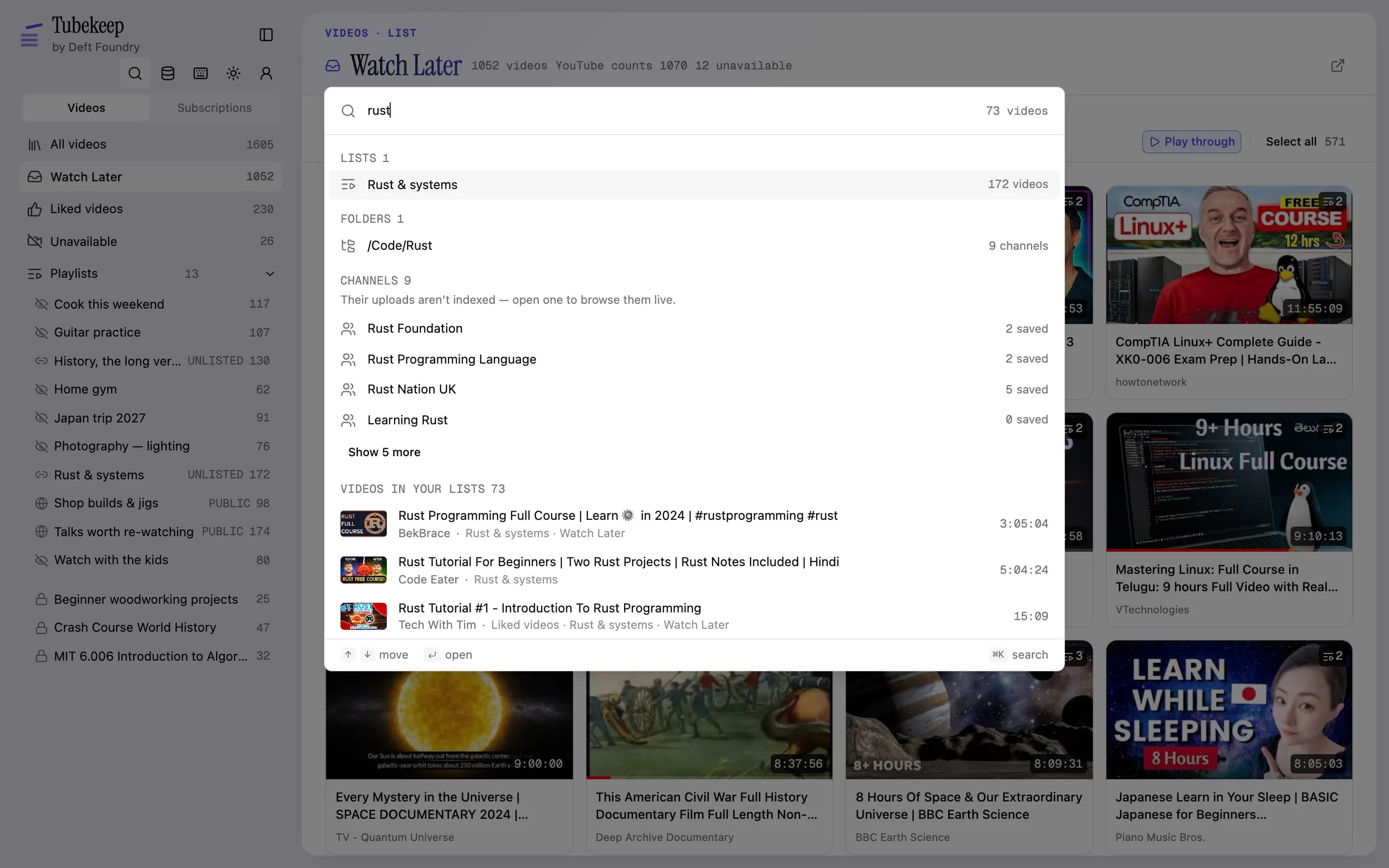
Organize your YouTube subscriptions into folders you name and nest. A few hundred subscriptions is one flat list on YouTube, and one flat list is not a library. Group them the way you actually think about them — and keep the grouping out of YouTube's way, because YouTube has no notion of it.
- Create and nest folders, then select a batch of channels — click, shift-range or lasso — and file the lot into one in a single pass. Open a folder and you see its level: subfolders as cards, then the channels filed right there.
- Filing is local and instant and asks no confirmation; unsubscribing is a real batch of writes to your account and is the only red thing on the pane.
- Folders live in the extension, so nothing about your YouTube account changes when you make one, and deleting a folder unfiles its channels rather than unsubscribing from them.
- A channel sits in one folder, which is what keeps the tree readable — search is the tool for everything else.
- The notification bell you set on YouTube shows up here: channels marked "All" wear it on their avatar, and the filter row narrows to them — or to the muted ones — inside whichever folder you are in. YouTube gives you no way to ask that.
- You can change the bell here too. Bell changes for a whole selection go through the same paced, undoable queue as every other write, and a channel whose current setting has not been read yet is skipped rather than guessed at.
- Click a channel to see its hundred newest uploads as a grid, read from YouTube right then: play any of them here, and save the keepers into Watch Later or a playlist.
- That grid has a filter row of its own — saved and not saved, most viewed, last 30 days, under or over 20 minutes — with the channel's public profile above it: subscribers, videos, views, when it joined, where it is, the links it published.
- It is a window onto YouTube rather than part of your library: asked for anonymously, so it works with YouTube closed and cannot be tied to your account, and nothing from it is stored unless you save something.
Batches it carries out, undoes, and tells you about
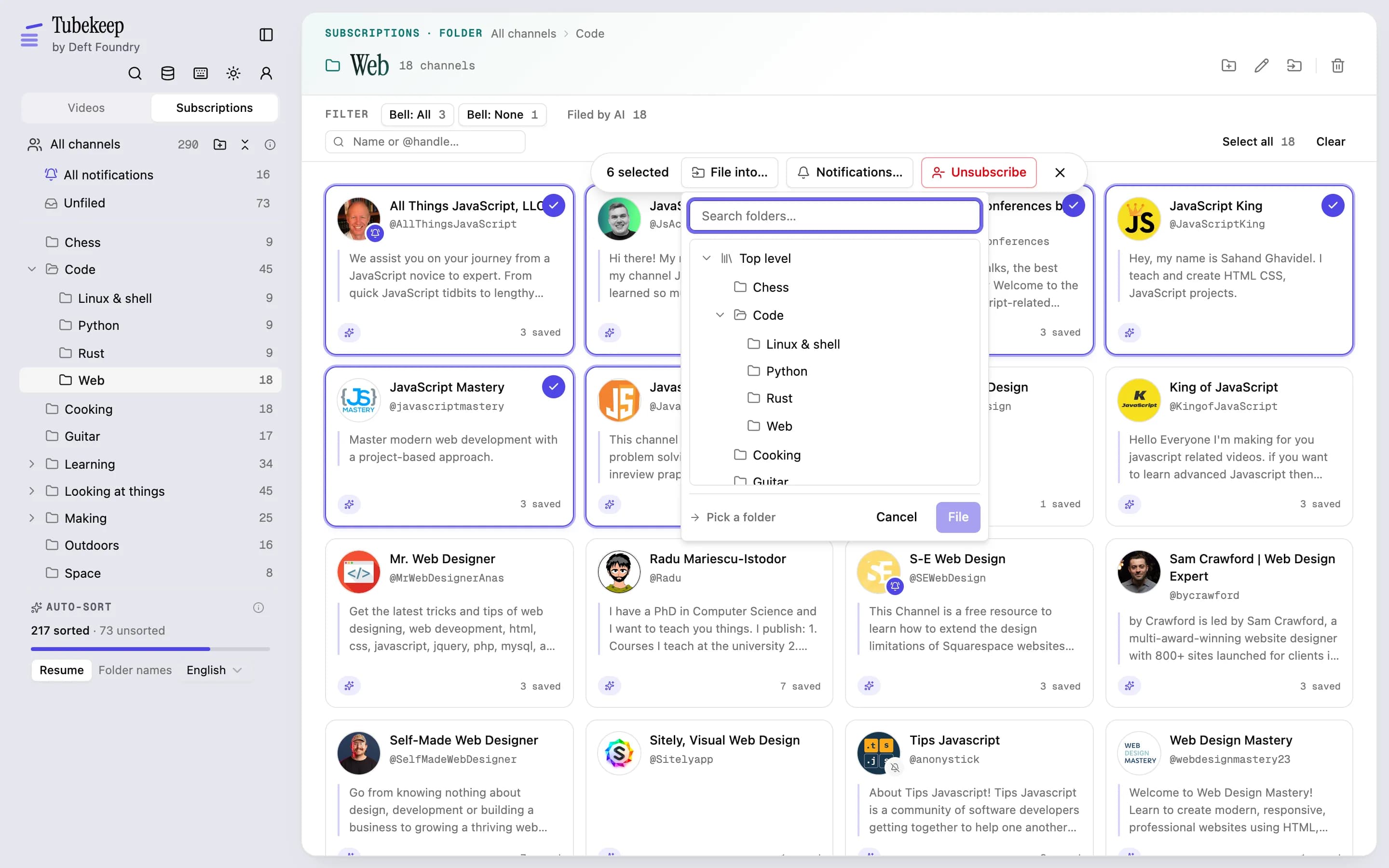
Bulk remove, bulk move, bulk unsubscribe — and undo. Everything that touches your account goes through one paced queue, in the foreground where you can watch it, and comes back out again if you change your mind.
- Every batch is one you selected and confirmed. Nothing runs on a schedule and nothing is tidied up for you in the background.
- A human pause between requests, with edits to the same list travelling together. If YouTube starts refusing, the run stops and says so rather than hammering it — then picks itself up and tries again; nothing unsent is lost.
- The library only changes after YouTube confirms each write, so a batch that stops halfway leaves an account and an index that agree with each other.
- Undo puts the whole batch back — as another paced batch, because that is what putting it back is — and reaches back thirty days. The one thing that cannot be undone is clearing out deleted videos, and the button says so.
- Anything you do one video or one channel at a time is free without limit. Batches — two or more at once — are free for the first 500 items, counted for the life of the install.
- Every bar that can start a batch says how many are left before you press, and a batch that would cross the line is refused whole rather than half-run, with your selection still standing so you can narrow it.
The one job the machine does better than a list of rules
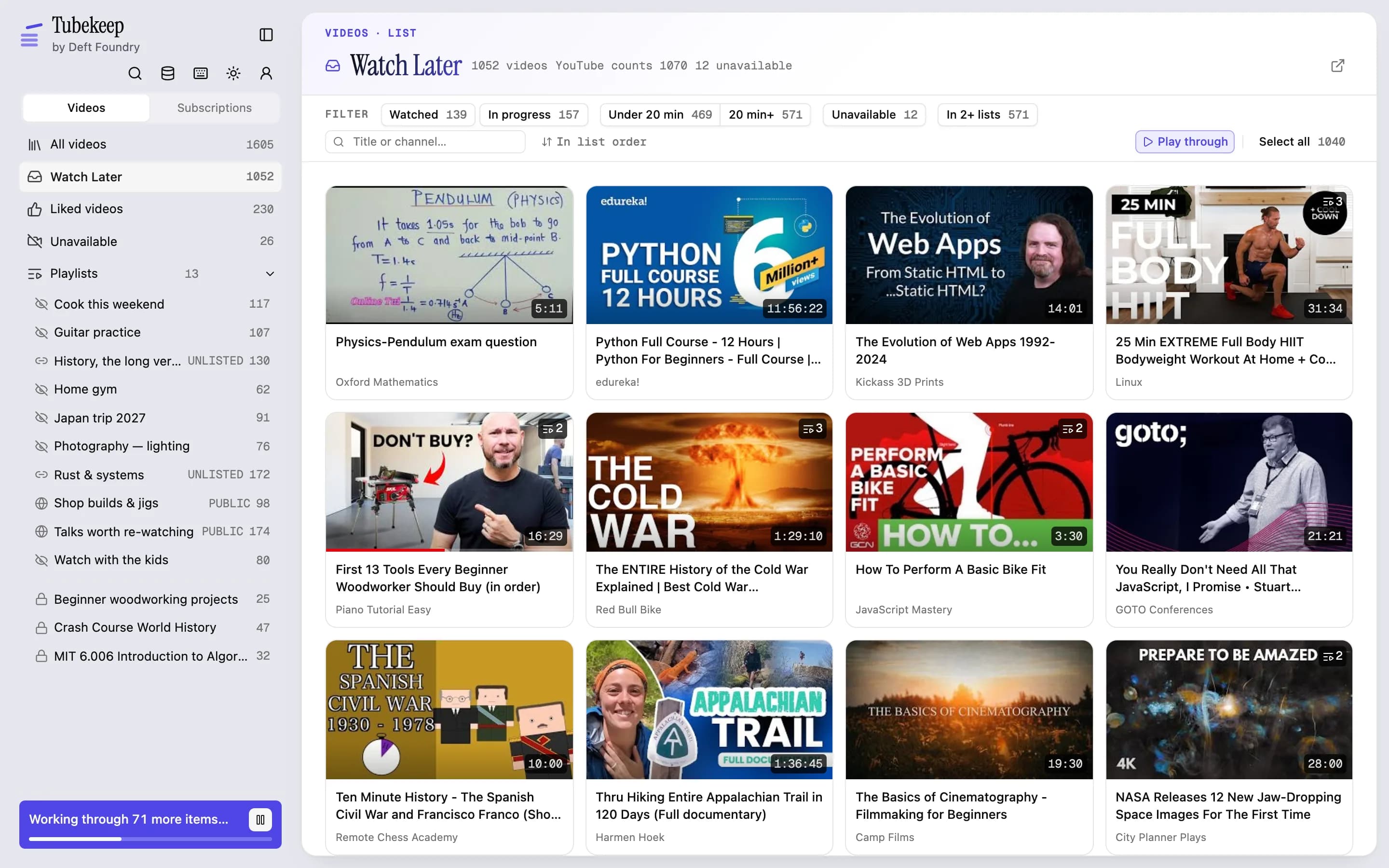
Filing a few hundred channels into folders is the one part of this a person genuinely does not want to do by hand. It is also the only feature here that runs on a server instead of in your browser — so it is the only one that needs an account, and the only one that sends anything of yours anywhere.
- It builds the folder tree from your own channel names and fills it in, marking what it made so that undoing the run leaves the folders you built by hand alone.
- That mark is also a filter: one button on the subscriptions grid shows exactly the channels the machine filed — the set undo would put back — so you can check its work a folder at a time instead of card by card.
- It works in two passes, because the two questions need two views. First it files channels into flat topics, a hundred at a time. Then it looks at every topic at once and groups the ones that belong together, so the top of the tree is something you can scan.
- A later run files new channels into the topics that exist and slots any new topic under the section its neighbours are in. The Data pane carries the grouping as a button of its own — hand-made folders included — with an ungroup beside it that puts back exactly what grouping moved.
- What crosses the wire is names: channel names, @handles, a short description and a few titles of videos you saved from each channel, plus the names of folders you already have. No ids, so the answer comes back by position and the mapping stays in your browser.
- You pick the language it names folders in — English, 中文, Español, Português, 日本語 or Deutsch — and it is the language of your library rather than of the interface, so a list full of Japanese channels can come back as Japanese folders on an English browser.
- The first 200 are free, cumulative for the life of the account, and what counts is everything a run asks about — grouping forty topics is forty off the same 200. A list under 200 gets both passes; a bigger one sees the tree take shape and stops there.
What Pro is: two ceilings lifted, nothing else moved
Everything above is the free product and stays it. Pro is one purchase that removes the two lifetime allowances — 500 batch items, and the 200 an AI filing run is allowed across both passes — for someone whose library is big enough to meet them. It adds no feature, because none is held back.
- Batches without a ceiling: every remove, move, copy, un-like, unsubscribe, bell change and dead-link clear you run on a selection, for as many as your library holds. One at a time was never counted and never will be.
- AI subscription filing past the first 200, the grouping pass included — with a fair-use ceiling of 20,000 a month, stated here because a paid tier with an undisclosed ceiling is a promise waiting to break.
- One-time purchase, not a subscription, at the price on the pricing page. The batch count needs no account and is kept in your browser — it travels inside your backup file — so the first time Deft Foundry asks you to sign in is the moment you press Buy.
Get Tubekeep
It's on the Chrome Web Store. The free tier is the whole tool and its library needs no account; the paid tier is bought once, if you want it.